How to Capture and Save Screenshots on Any Device
A complete triage reference detailing screen capture shortcuts and saving procedures across Windows, macOS, iOS, and Android platforms.
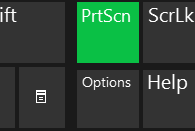
Press the "PrtScn" (Print Screen) key on your keyboard to snapshot your entire display to the system clipboard.
Open the Start Menu, type "paint", and launch the Paint application.

Press "Ctrl + V" to paste the image, then click the diskette icon in the upper-left corner to save the file to your Desktop.

Apple macOS Desktop
Press and hold "Shift + Command (⌘) + 3" simultaneously on your keyboard.
A thumbnail will briefly appear in the corner of your screen, and the completed image file will automatically save straight to your Desktop directory.
Apple iOS (iPhone)
Press the Side Button (Power) and the Volume Up button at the exact same time, then quickly release both.
The screen will flash, and the capture will automatically commit directly to your native Photos application library.
Google Android Mobile
Press the Power and Volume Down buttons simultaneously and hold them briefly until the screen animation flashes.
The image is instantly saved. You can retrieve it or share it directly out of the Photos or Gallery utility application.