Changing or Removing Local and Online User Passwords
Learn how to update your sign-in security, convert an online Microsoft account to a local account, or completely remove your login credentials across Windows 11 and legacy Windows 8 configurations.
Windows 11: Accessing Sign-in Options
Open the Start Menu, type 'Settings', and press Enter. Alternatively, press the 'Windows Key + I' shortcut on your keyboard.
From the left-hand sidebar, click on 'Accounts'. In the main menu on the right, scroll down and select 'Sign-in options'.
Click to expand the 'Password' section, then click the 'Change' button.
Enter your current account password to verify your identity, then click 'Next'.
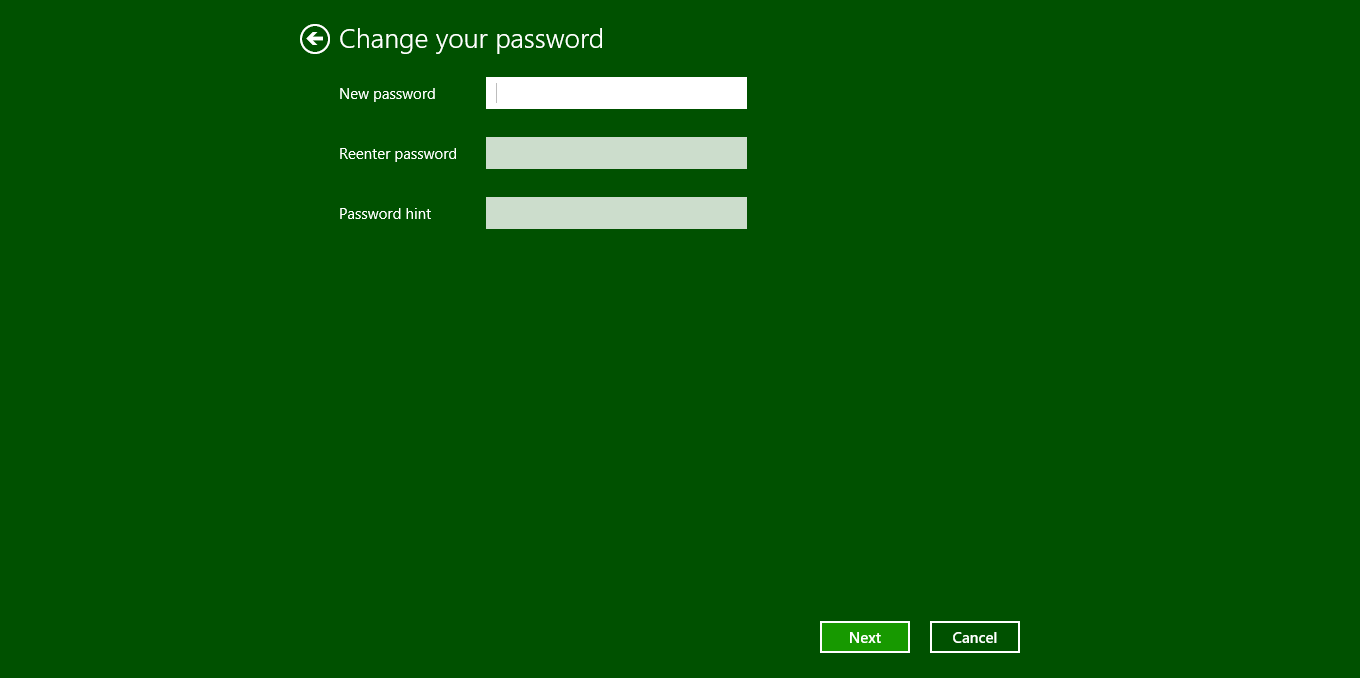
To change your password: Enter a new password, confirm it, and provide a hint. To remove your password: Leave all three input fields completely blank and click 'Next'.
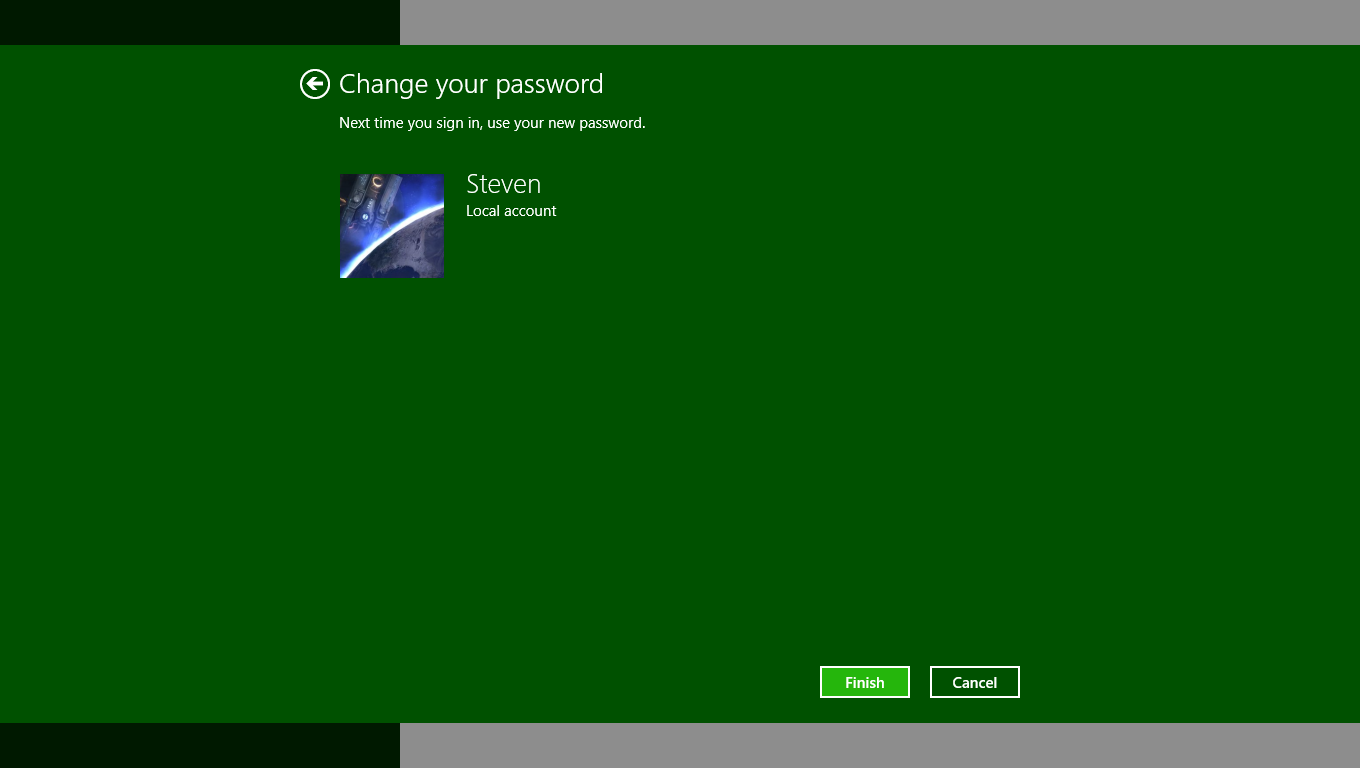
Click the 'Finish' button to save your changes. Your account will now require the new password or skip the login credential request on your next restart.
Windows 11: Converting an Online Microsoft Account to Local
If you log in with a Microsoft Email and want to strip the password, navigate to 'Settings' -> 'Accounts', and click on 'Your info'.
Scroll down to the 'Account settings' section. Find the option labeled 'Sign in with a local account instead' and click it.
Enter your current Microsoft Account password or PIN to authenticate the identity transfer, then click 'Next'.
You will be prompted to set up your new local username. To completely remove the login password, leave the 'New password' and 'Confirm password' blocks totally empty.
Click 'Next', and then click 'Sign out and finish'. Windows will log you out, apply the local profile migration, and let you breeze right past the login screen next time.
Windows 8: Legacy PC Settings Method
Open the Start Menu by clicking the bottom left corner of your screen or pressing the Start key on your keyboard.
Click the Search icon (magnifying glass) in the top right corner, type 'PC Settings', and open the application.
Select 'Accounts' from the left-hand tabs panel interface.

Click on 'Sign-in options' to load your credential configurations.
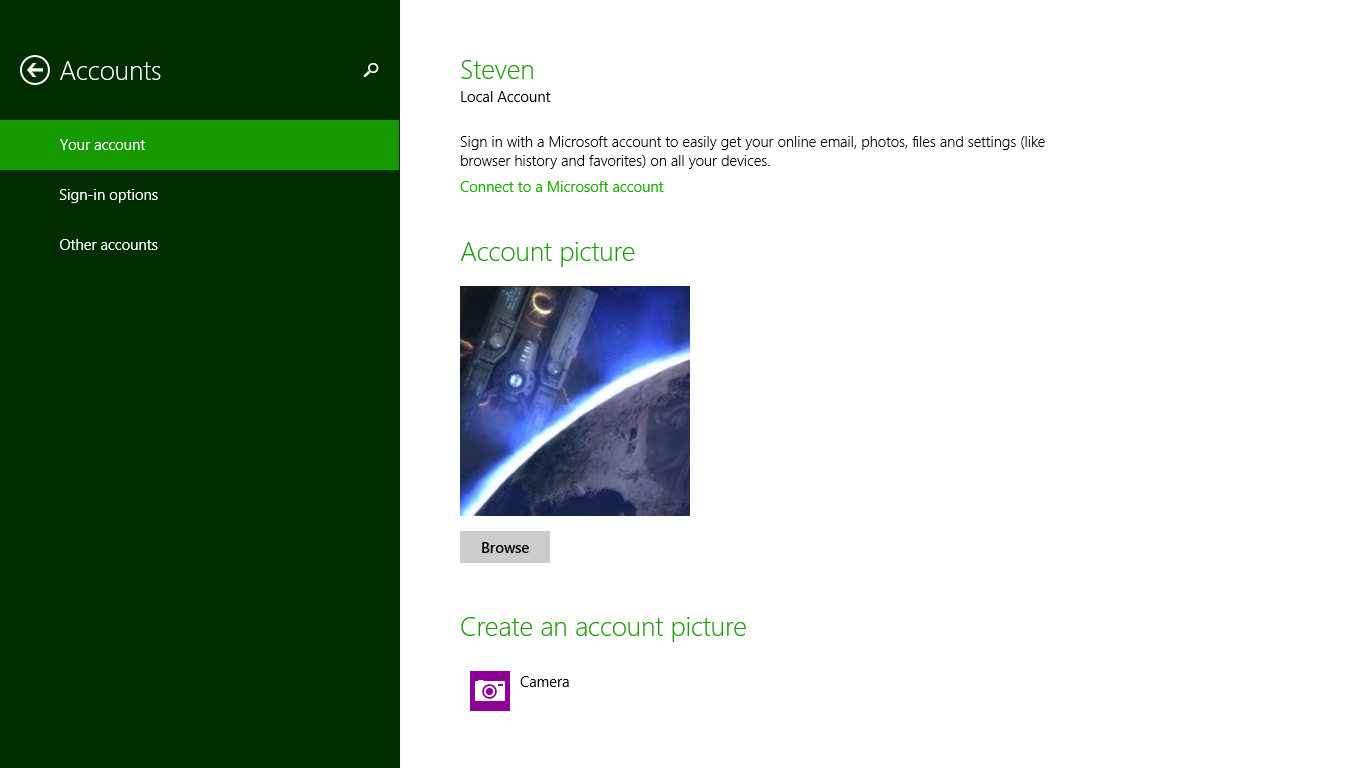
Locate the 'Password' subsection header and click the gray 'Change' button right underneath it.
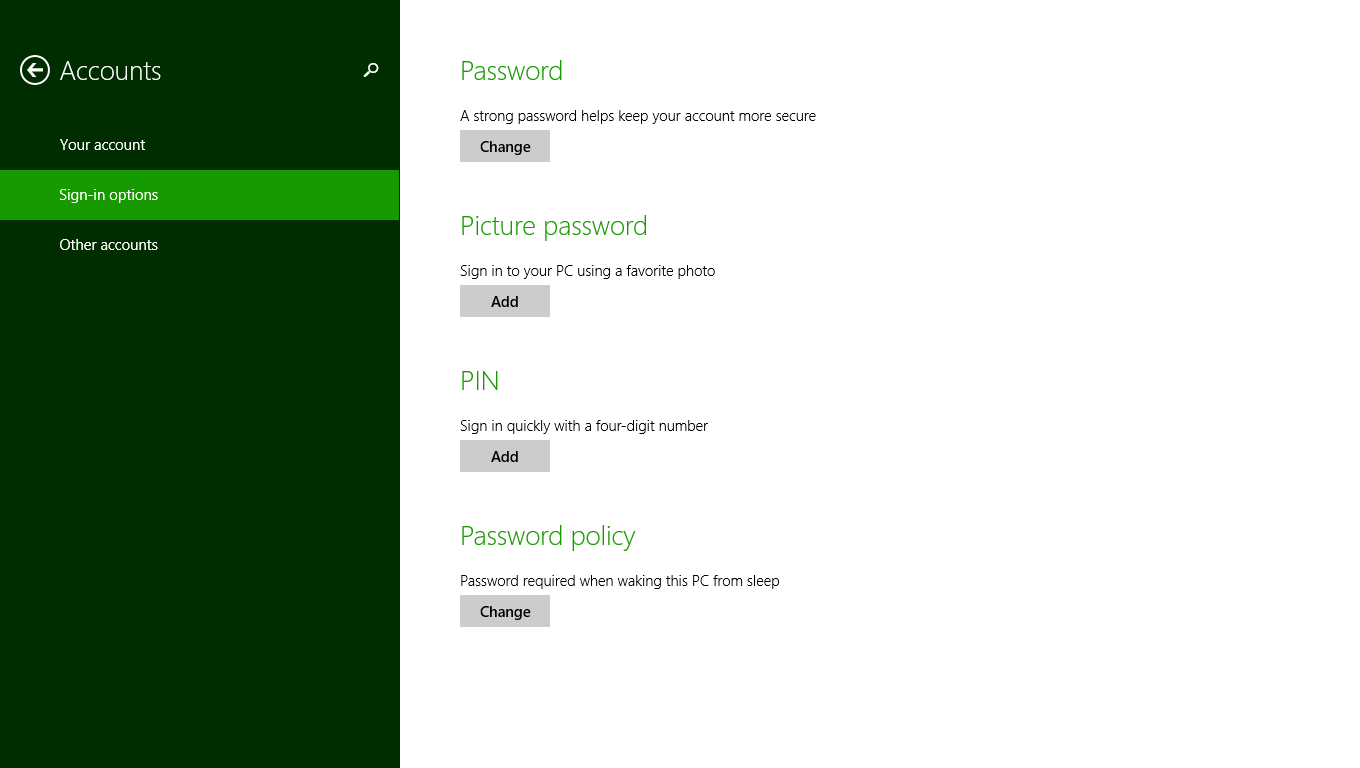
Confirm your identity inside the security overlay by entering your current login credentials, then click 'Next'.
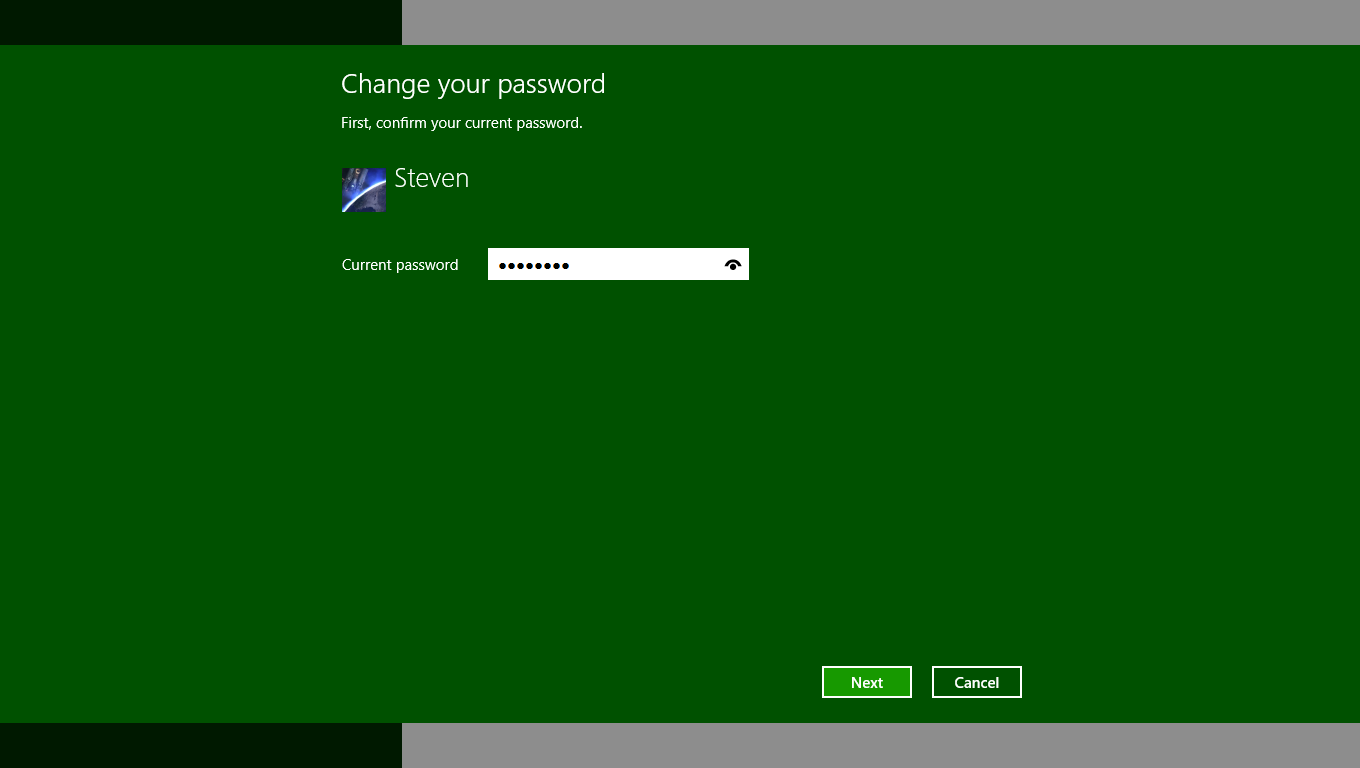
To change it, input your replacement values. To strip the security entirely, leave the password fields completely empty and proceed by clicking 'Next'.
Finalize the confirmation dialog by clicking 'Finish' at the bottom of the wizard overlay screen.