Cross-Platform Process Triage: Terminating Frozen Applications
The definitive multi-platform reference for breaking through system freezes, isolating hung threads, and executing clean process termination across Windows, Linux Mint, macOS, and Android mobile environments.
Windows: Direct System Interruption
Press Ctrl + Shift + Esc simultaneously. This hardware interrupt bypasses all intermediate shell menus and immediately launches Task Manager directly onto your active desktop workspace.
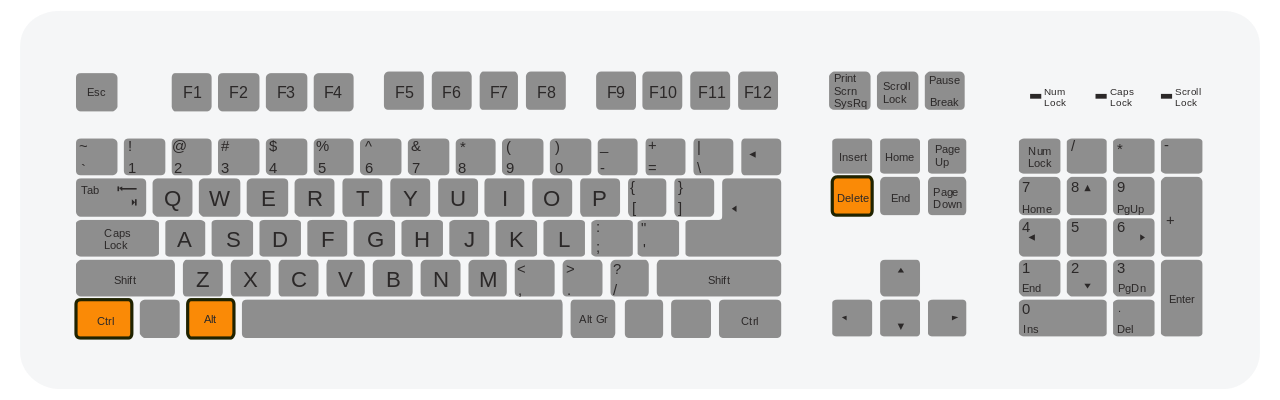
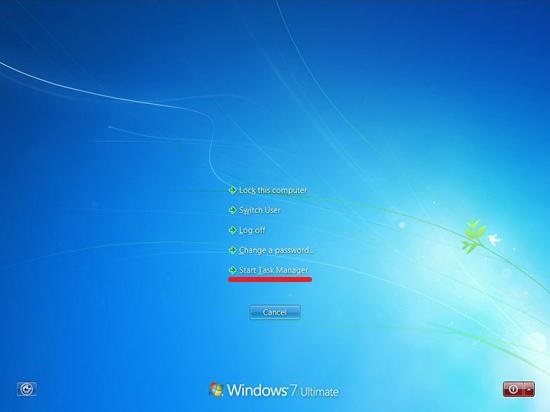
Alternatively, press Ctrl + Alt + Del to signal a kernel-level hardware interrupt. This opens the Windows security options interface overlay, where you must manually select Task Manager from the options list.
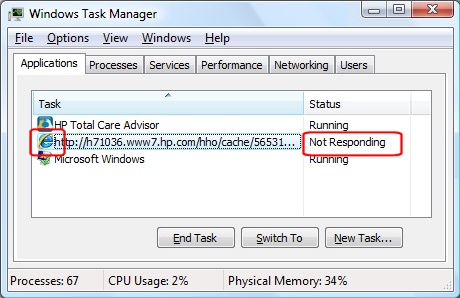
Once Task Manager initializes, look at the default Processes tab. Navigate through the active grid elements under the main Apps section to locate the hung software container.
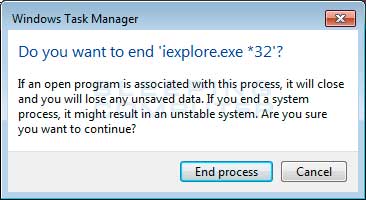
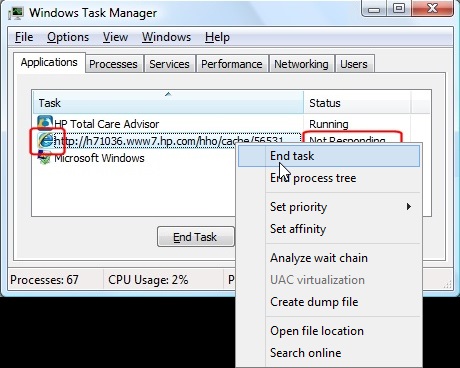
Right-click on the row belonging to the non-responsive application to prompt the interactive contextual properties menu, then select End Task from the list.
When a stubborn app refuses to close via the standard screen loop, right-click the item and select "Go to details". This switches you to the raw Details tab, exposing the actual executable binary thread (e.g., explorer.exe or chrome.exe).
Linux Mint: Deploying System Monitor
To execute an interface triage in Linux Mint, tap the Super Key (Windows Key) to call the app launcher, type "System Monitor", and press Enter to open the environment.
Inside the Processes tab grid, find the frozen thread execution context, right-click the row item, and select Kill. To skip the graphical interface entirely and drop right into the shell, press Ctrl + Alt + T on your desktop workspace to instantly spawn a new Terminal window, then run: killall -9 [process_name].
For rapid interface recovery without looking up a process name, trigger the command prompt run-dialog using Alt + F2, input the phrase "xkill", and hit Enter.
macOS: Initializing Force Quit Subsystems
On Apple desktop architecture, press Cmd + Option + Esc simultaneously to project the specialized hardware-level Force Quit Applications utility screen directly over all active frames.
Highlight the target application name within the dialog grid manager (frozen apps will explicitly note text indicating "Not Responding" in red parenthesis) and click the primary blue Force Quit button.
Android Mobile: Application Memory Eviction
To triage mobile app lags, deploy your interface's execution deck index view. On newer gesture-based environments, swipe up and hold from the bottom margin of the touchscreen. On older setups or Google Pixel hardware utilizing legacy 3-button navigation layout bars, simply tap the dedicated square Recents/Overview navigation hardware icon.
If background services remain hung, loop layouts continue leaking CPU cycles, or the app interface continues executing hidden processing loads after dropping its card, navigate directly into Settings -> Apps -> See All Apps.
Universal System Recovery Guardrails
Forcefully terminating a frozen thread or core process tree across any of these operating systems immediately releases all locked hardware addresses and cache registers back to the kernel safely.