FileZilla Client Installation Guide
A complete, step-by-step walkthrough for downloading and installing the FileZilla FTP client on Windows.
Navigate to the official website at https://filezilla-project.org/
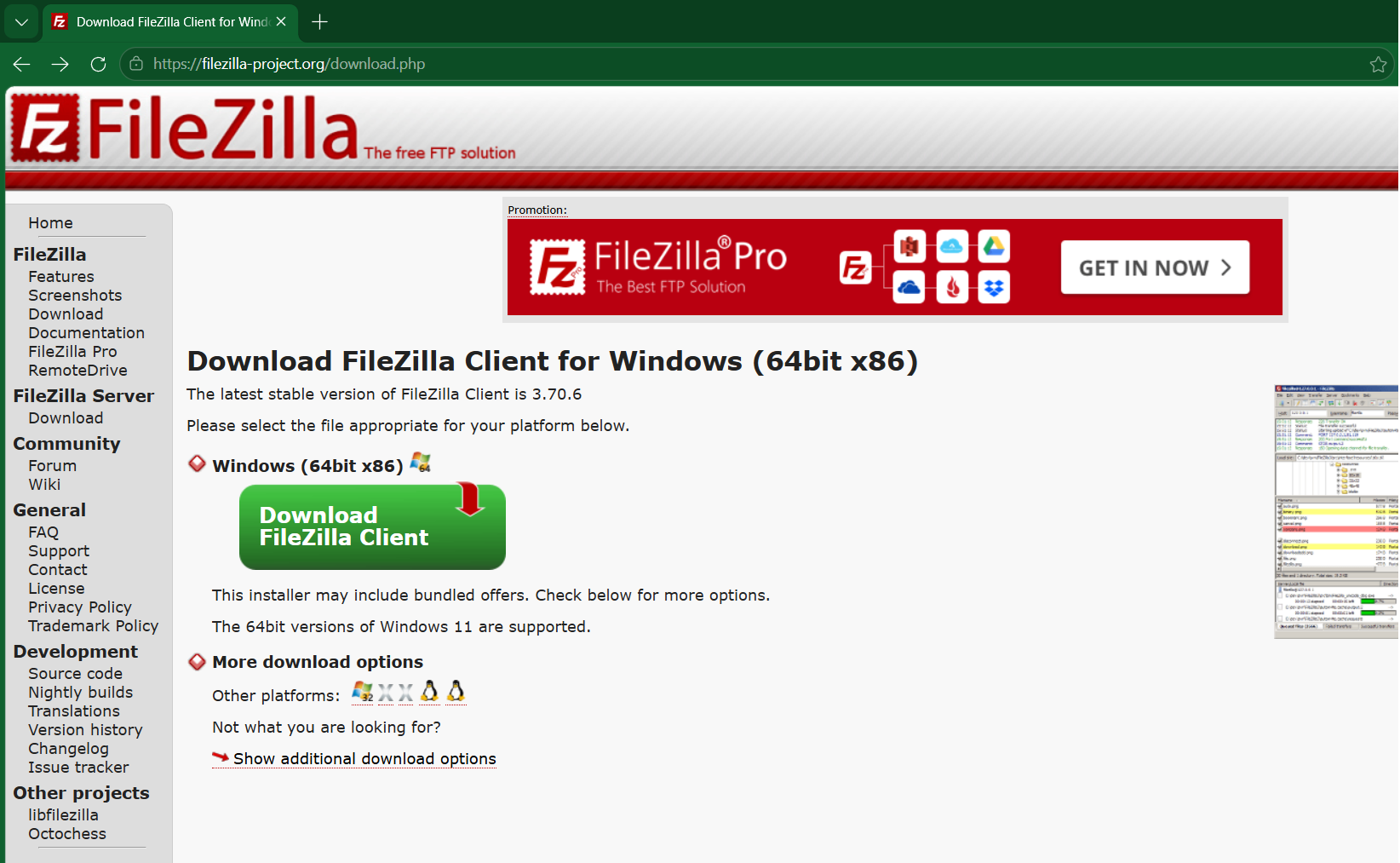
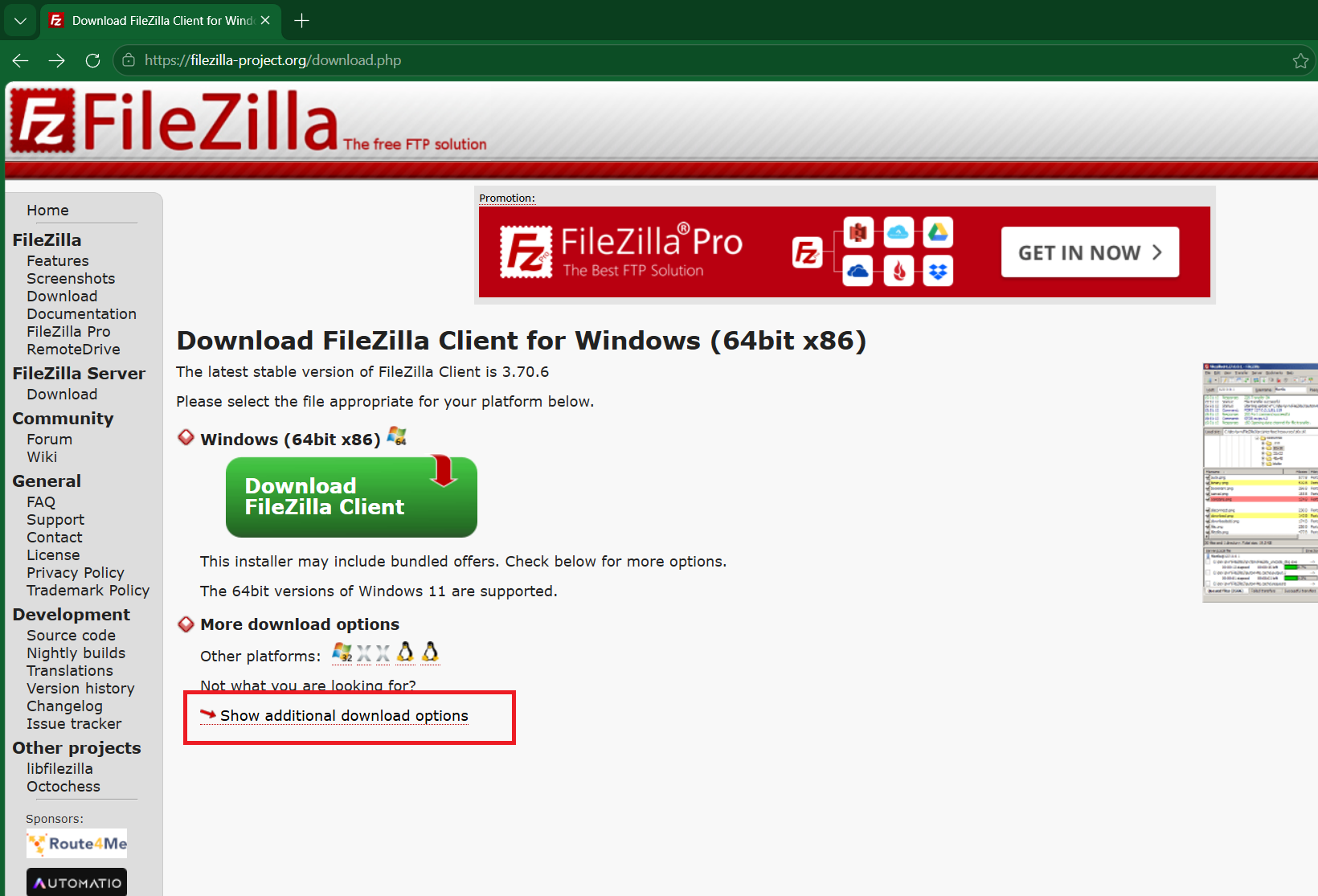
Click on the "Show additional download options" link to view all available platform binaries.
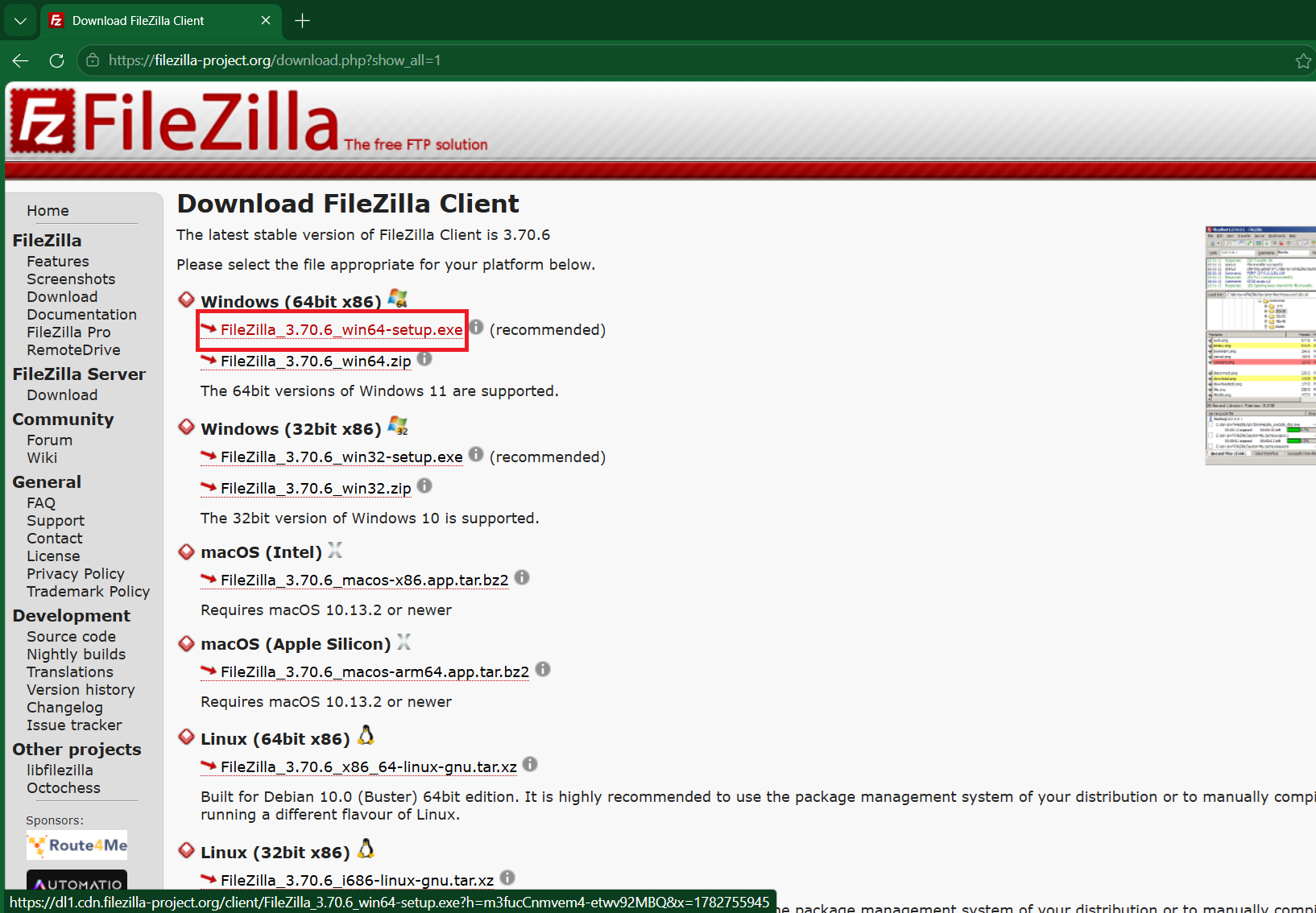
Download the standard Windows .exe installer version matching your system architecture.
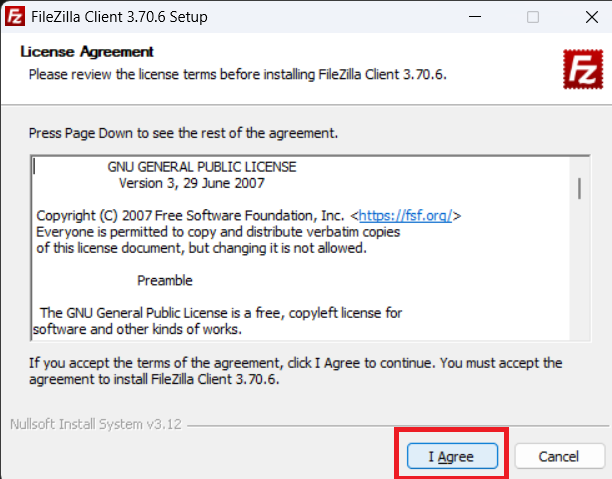
Launch the downloaded installer. Review the terms and click the "I Agree" button to accept the License Agreement.
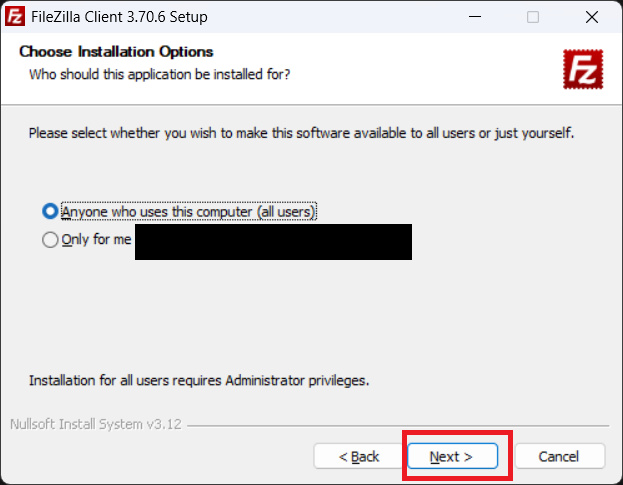
Select the appropriate execution scope for the software (recommended: "Anyone who uses this computer (all users)") and click "Next".
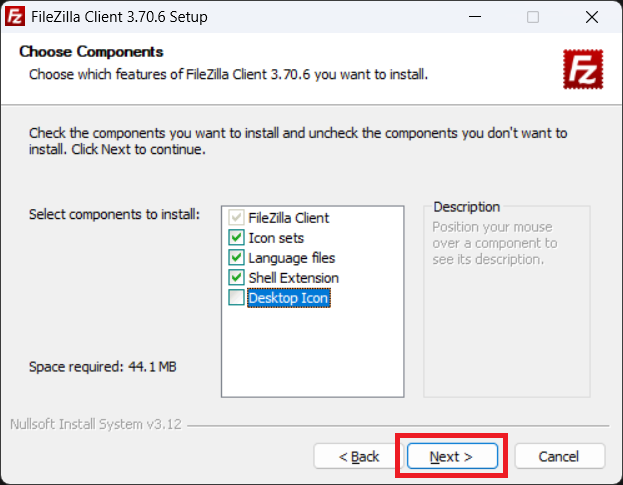
Choose the components you wish to include. Check the box next to "Desktop Icon" if you want a shortcut created on your desktop, then click "Next".
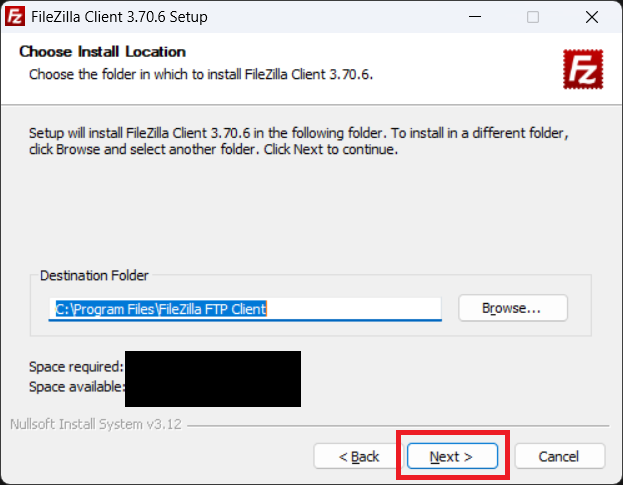
Verify the default destination folder path or browse to a custom installation directory, then click "Next".
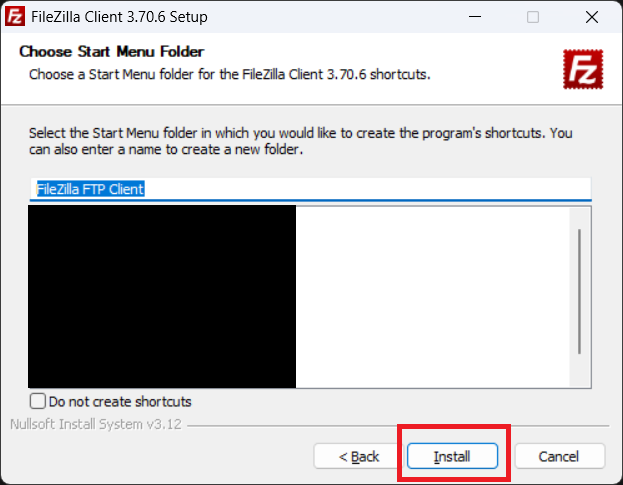
Select the desired Start Menu shortcut folder name and click "Install" to begin extracting files and finish setup.